MultiNote
MultiNote lets you record one patient encounter and create several notes from it at the same time. You record once, choose the document types you need, review the drafts, and save them as notes.
MultiNote is started from the Patients tab. It is available only when it is enabled for your organization and your user account. To enable MultiNote, contact DeliverHealth Support.
Note
MultiNote was previously started from its own MultiNote tab. Selecting that tab now displays a message that directs you to the Patients tab. See MultiNote Has Moved for details.
Starting a MultiNote
You can start a MultiNote for a patient or appointment in your schedule, or without selecting a patient.
Start a MultiNote for a Patient or Appointment
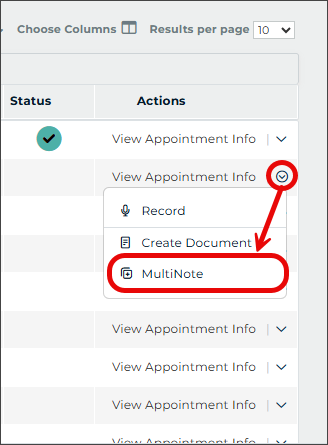
- Select the Patients tab.
- Locate the patient or appointment in the inpatient or outpatient schedule.
- Expand the menu in the Actions column and select MultiNote.
MultiNote opens with that appointment already selected. You can choose the patient consent setting before you begin recording.
Start a MultiNote Without a Patient
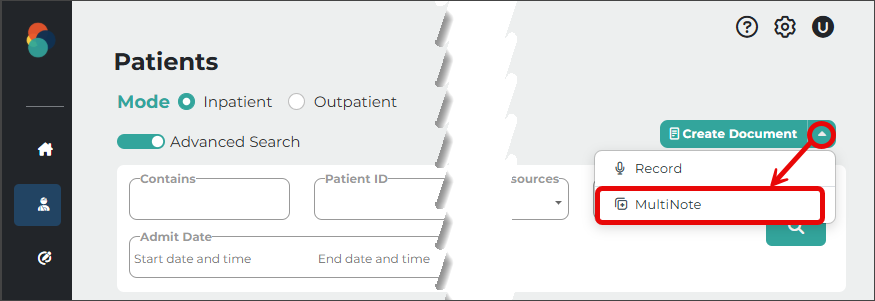
- Select the Patients tab.
- Expand the Actions menu in the upper-right corner of the page and select MultiNote.
Selecting MultiNote in the upper-right corner always starts a new MultiNote. To continue a MultiNote that is on hold, see Resume a MultiNote.
Tip
To start MultiNote in one click, set Default Action in Patients Tab to MultiNote in User Preferences. Your default is used for the action button in the upper-right corner of the Patients tab and for the Actions column in the grid. The other actions remain available in the drop-down menu.
Entering Patient Information
When you start a MultiNote without an appointment, or when appointments are not available for you, MultiNote presents a Patient Appointment Details form. The fields use your site's custom labels:
- Patient ID
- Patient Name
- Appointment Date/Time
- Account Number
- Order Number
All fields are optional. Information you enter here is applied to the notes created in the MultiNote session and is shown in the Patients grid.
The same fields are available in the MultiNote draft editor, so you can add or update patient information before you save the notes.
Adding Associates and Signers
The MultiNote starting page includes an Associates section and a Signers section. Associates and signers added here are applied to every note created in that MultiNote session.
- Associates - Associates that are applied automatically are listed, including associates attached to the appointment, the patient's primary care physician, and auto-copy associates configured for the dictating provider. Add more associates, or remove any that don't apply.
- Signers - Signers assigned to you in Client Maintenance > Users > Additional Signatures are added automatically. Select + Add Signer to search for and add another signer, or remove signers that don't apply.
Recording the Encounter
- Select Record to begin recording. Text appears in the editable speech-to-text draft as you speak.
- Select Stop when the encounter is finished.
- To discard the recording and begin again, select Restart.
Tip
If Copy Forward voice commands are enabled for your organization, you can say a phrase such as "prior note" or "previous letter" while recording to bring content from an earlier note for the same patient into the new notes. Contact DeliverHealth Support to enable and configure Copy Forward voice commands.
Creating the Notes
- Expand the document types list and select each document type you want to create.
- Select Generate Documents. A draft is created for each document type you selected.
- Review each draft and edit the text as needed.
- Use the Tools menu for additional options:
- Change pronouns - Changes the pronouns used in the draft.
- Translate - Translates the draft into another language.
- Suggest ICD-10 Codes - Suggests ICD-10 codes based on the draft.
- Regenerate documents - Creates the drafts again.
- Save the notes:
- Save - Creates the notes and leaves them in their workflow folders.
- Save & Edit - Creates the notes and opens each note you have access to in its own InQuiry editor tab.
Warning
Draft changes are not saved automatically. Before you close the tab or leave the page, select On Hold and wait for the confirmation, or save the notes.
Notes Created Window
After you select Save or Save & Edit, a Notes Created window lists every note that was created, with its document type and Note ID. When only one note is created, the window is titled Note Created.
If your organization runs validation rules on MultiNote notes, the window also shows the results:
- The window states how many notes failed one or more validation rules.
- Each note that failed shows the validation it failed. When the rule moved the note, the line also shows whether the note was routed for review or routed for additional services.
- After Save, notes that passed validation are listed first, followed by notes that failed.
- After Save & Edit, notes are grouped by whether you can open them. When you select Close, each note you have access to opens in its own InQuiry editor tab.
A validation rule may move a note to a folder you don't have access to. These notes are listed under their own heading and are not opened.
Note
Validation rules do not run on MultiNote notes unless your administrator includes MultiNote in a rule.
Placing a MultiNote on Hold
Select On Hold at the top of MultiNote to pause an encounter and come back to it later. Selecting Close also opens the On Hold prompt, where you can place the MultiNote on hold or delete it.
The following are kept while a MultiNote is on hold:
- Your draft text.
- The associates and signers you selected.
- Your recording consent choice.
- The recording, if MultiNote keeps the audio for your notes.
- The patient and appointment information you entered, for a MultiNote started without a patient.
Warning
A held MultiNote is encrypted and kept in the browser you were using. Resume it in the same browser on the same computer. Held drafts are kept for up to 30 days.
Resume a MultiNote
- Select the Patients tab.
- Locate the row for the appointment or MultiNote. A row with a MultiNote on hold shows an on-hold status.
- Select MultiNote in that row. Your held draft is restored.
Each MultiNote started without a patient has its own row, so you can keep several on hold at the same time and resume them in any order.
MultiNote in the Patients Grid
A MultiNote started without a patient is added to the inpatient or outpatient grid you started it from, both when you place it on hold and after you save its notes.
- Patient information - Patient and appointment information you entered in MultiNote is shown in the grid. If you didn't enter a patient name, the row is listed as New Dictation.
- Appointment date - If you didn't enter an appointment date, the row uses the date and time the MultiNote was placed on hold or completed.
- Status - The row shows an on-hold status while the MultiNote is on hold. After you save the notes, the status changes to show that the recording is complete and the notes were created. In the inpatient grid, a completed MultiNote is also marked as treated.
- Another note for the same patient - Selecting MultiNote in the row of a completed MultiNote opens a new MultiNote with the same patient and appointment information already filled in.
These rows are kept in the browser you were using, so you see them in the same browser on the same computer. A completed row is shown for 30 days, and the grid keeps your 50 most recent completed rows.